
Try three inventory labels
These fictional Code 128 values identify shelf locations: TV-SHELF-A01, TV-SHELF-A02 and TV-SHELF-A03. Download the three SVG examples or inspect one Code 128 SVG. These are examples, not assigned retail product numbers.
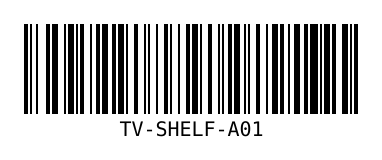
Print a barcode label that your scanner can read
- Choose Code 128. Paste one shelf value per line into Bulk barcode generation. Keep Show value enabled, bar width 2 and height 90 for these examples.
- Select Generate Bulk ZIP and extract the SVG files. A batch accepts up to 200 non-empty lines.
- Place each SVG into your label software. Preserve its proportions and the white space around the bars. Match the document to your actual label stock before printing.
- Print the A4 practice sheet at Actual size / 100%. Its labels are 100 × 36 mm; it is a practice sheet, not a vendor-specific adhesive-label template. Check its 50 mm ruler with a physical ruler.
- Scan each printed label using the scanner and software you will use in your workflow. Confirm the complete value, including hyphens, before printing a batch.
SVG remains sharp when resized, but a label can still fail if its bars become too small, its white margin is cropped, or the printer has poor contrast. Bar width is a pixel setting in the generated file, not a guaranteed physical print size. The example symbols were checked programmatically; physical printer/scanner compatibility must be checked with your equipment.
Inventory IDs and retail numbers are different
Choose Code 128 for internal shelf or asset identifiers. This tool does not create GS1-128 application identifiers or issue GTINs. For retail products, use a legitimately assigned identifier and the format required by the retailer. Read GS1's barcode setup guidance.
Written and maintained by Fahad Farid · Updated September 25, 2026.