
How to Convert a PDF to Google Docs
On a computer, open your PDF in Google Drive with Open with, then Google Docs. Review the resulting document because tables, columns and other formatting may change. This is a Google cloud workflow, so upload only documents you are permitted to store there.
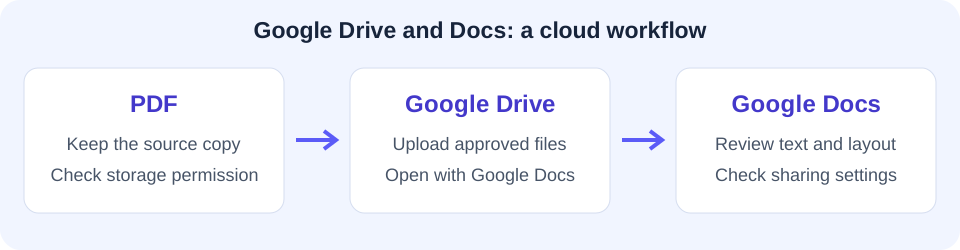
Choose Google Docs or a local Word file
“PDF to Google Doc” usually means making PDF content editable in Google’s document editor. Uploading a PDF to Drive is storage; opening it with Google Docs starts a separate conversion. Simply changing a filename will not create an editable Google document.
If you want a local Word-compatible download, PDF to Word produces DOCX on your device. If you want to collaborate in Google Docs, use its import workflow and check the result there. Google’s conversion and storage are separate from ToolVero’s local file processing.
Open the PDF with Google Docs
- On a computer, sign in to the Google Drive account where the file is permitted to be stored.
- Upload the PDF if it is not already in Drive.
- Right-click the PDF and choose Open with, then Google Docs.
- Wait for the conversion and compare its text and layout with the original PDF.
- Rename the editable result clearly so that you can distinguish it from the source PDF.
These are desktop web instructions. Mobile app menus can differ; use the current Google help for the environment you are using. ToolVero does not provide a direct connection to your Google Drive account.
Prepare a scan for Google’s text conversion
Google’s preparation guidance for PDF and image text conversion recommends a file of 2 MB or less, upright text and sharp images with good contrast. Those are recommendations for that workflow, not a universal limit for storing files in Drive.
Google’s PDF and image text-conversion instructions also describe the formatting limitations. You can use Rotate PDF to correct sideways pages first. Avoid compressing so strongly that letters become unclear.
Check what formatting survived
Google notes that basic text styling may be retained while lists, tables, columns and notes may not be detected. Check headings and reading order before making cosmetic changes. A page that looks acceptable at a glance can still have a price or identifier attached to the wrong row.
Compare a paragraph at the beginning, middle and end, then check important tables cell by cell. Confirm decimal points, dates and minus signs. Keep the original PDF available until the editable result has been reviewed.
Consider DOCX as an intermediate file
You can instead prepare a DOCX with ToolVero’s flowing Word converter, then use Google’s supported document import process. That creates another conversion boundary, so inspect the imported document again rather than assuming the DOCX appearance will transfer exactly.
Layout mode uses positioned text boxes, while flowing mode creates paragraphs and simple detected tables. Complex graphics and page structure need manual work. For a scan, run English OCR preparation before the Word conversion.
Handle private documents and sharing
Use an account approved for the document and review sharing settings before sending an editable link. A ToolVero conversion running locally does not make a later upload to Google local. Save the original and use file names that identify which version is approved for sharing.
Fix missing text and layout changes
If recognition is poor, inspect the scan’s orientation, contrast and legibility. If text is present but the layout is unsuitable, rebuild the affected structure manually or use a different editing workflow. Do not publish an edited document until its meaning and important values match the source.
Frequently asked questions
Is uploading a PDF to Drive the same as converting it?
No. Storing the PDF and opening it with Google Docs are different actions. Use Open with, then Google Docs to start the supported conversion.
Does Google Docs preserve every PDF table?
No. Google’s help warns that tables, columns and other structures may not be detected. Review the converted result.
Does ToolVero upload my file to Google?
No direct Drive integration is provided in this workflow. A later upload that you make to Google is a separate action.