
How to OCR a Scanned PDF and Make Its Text Searchable
Open OCR PDF, select a clear English scan, choose Prepare searchable PDF and download the searchable copy. Check search, text selection and important numbers before using it. ToolVero recognizes image-only pages on your device.
Check whether your PDF needs OCR
Open a page and try to select a word. If the page behaves like one large photo and searching for a visible phrase returns nothing, it probably needs optical character recognition, or OCR. OCR interprets the pixels in the page image and adds machine-readable text. It can misread what it sees, so searchable does not automatically mean accurate.
A PDF can contain both scans and ordinary text pages. This version retains pages that already contain selectable text. It does not re-recognize an image region on a page that also contains a small existing text layer. Check that type of mixed page separately.
Make an English scan searchable
- Keep the original and open OCR PDF.
- Select a PDF no larger than 50 MB and 20 pages. For longer documents, split the PDF into smaller parts.
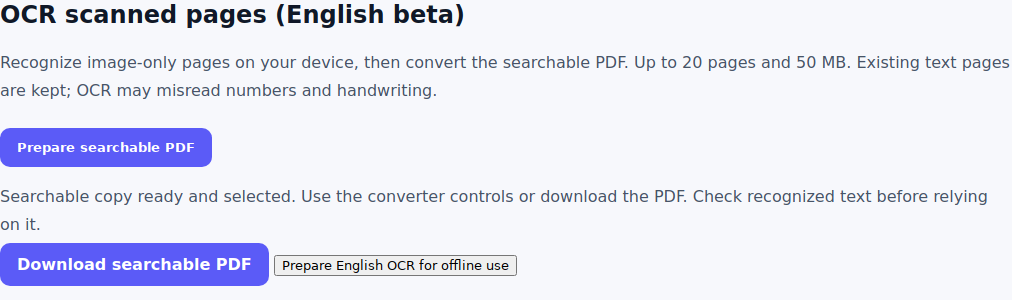
- Select Prepare searchable PDF. The first run loads the English recognition resources; processing then happens on your device.
- Wait for the result. Use Cancel OCR if you need to stop.
- Select Download searchable PDF. Open the copy in a PDF reader and search for a phrase you can see on the page.
The visible scan remains a page image, with recognized text added for search and extraction. OCR does not turn every line into a clean, reflowable document or rebuild a spreadsheet table by itself.
Prepare the scan before recognition
Upright, clear printed text is a better starting point than a skewed phone photo. If every page is sideways, use Rotate PDF first; select only affected pages when orientations differ. Avoid excessive compression before OCR, because small letters and thin punctuation can disappear.
The current OCR model is English. Handwriting, unusual fonts, low contrast, other languages and tightly packed columns can produce poor results. Keep those limits in mind when deciding whether a page needs manual transcription.
Check search and recognition accuracy
Use a short acceptance check: search for one distinctive heading, copy a sentence into a text editor, then compare a name, date and number with the scan. Pay particular attention to 0 and O, 1 and I, decimal points and minus signs. Check pages near the beginning, middle and end rather than only the first page.
If the copied text has the wrong reading order, the scan may contain columns or complex layout. OCR can recognize individual words while still ordering them incorrectly. Correct important values before sharing or calculating with the result.
Convert the searchable copy to another format
OCR preparation is also available inside PDF to Word, PDF to Excel, PDF to Text and PDF to Markdown. Select the source PDF, run Prepare searchable PDF, then use the converter controls. The searchable result becomes the selected file.
For Word, choose layout output for positioned text or flowing output for normal paragraphs and simple tables. For Excel, compare every row and column with the source. A recognition error in a price or account number can be more serious than a spelling mistake in a paragraph.
Use OCR offline after preparation
Visit the OCR tool online and choose Prepare English OCR for offline use. If it asks you to reload after service-worker installation, do that once and prepare again. Try the workflow offline before relying on it. Browsers can clear cached resources, so offline availability is not permanent storage.
Fix common OCR problems
| Problem | What to check |
|---|---|
| No useful recognized text | Confirm the scan is upright, legible and in English. |
| Only some pages changed | Pages with existing selectable text are retained; inspect mixed-content pages separately. |
| Browser runs out of memory | Close other tabs and split the source into fewer pages. |
| Wrong numbers or reading order | Compare with the original and correct the result before reuse. |
Frequently asked questions
Does OCR upload my PDF?
Recognition runs on your device using the bundled OCR engine. Loading the website and its resources is separate from uploading the selected document.
Does this OCR support handwriting or Urdu?
The current tool uses an English model and is intended for clear printed text. It does not offer a dedicated handwriting or Urdu mode.
Why can I search the file but still not edit it like Word?
Searchable text is added to a page image. Use a Word converter afterward when you need editable paragraphs, and check the conversion.