
How to Convert HEIC Photos to PDF
To convert HEIC to PDF with ToolVero, first convert the HEIC photos to JPG, then add those JPGs to JPG to PDF. Each selected picture becomes an A4 PDF page. Keep the HEIC originals and check the downloaded PDF before sharing.
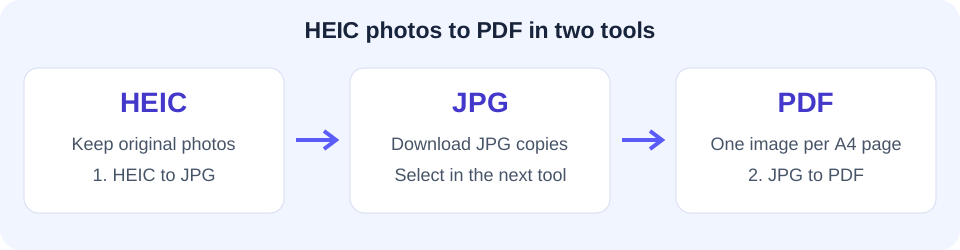
Choose a HEIC to PDF converter workflow
A photo saved as HEIC is an image file; a PDF is a document container that can hold one or more page images. Putting the photo in a PDF can make it easier to submit to a portal that requires documents, but it does not improve the original photograph or recognize its text automatically.
ToolVero currently uses two separate tools for this task: HEIC to JPG followed by JPG to PDF. You download the intermediate JPGs and select them in the next tool. Files are not passed between the pages automatically.
Step 1: convert the HEIC photos to JPG
- Keep your original HEIC or HEIF files.
- Open HEIC to JPG and choose a small group of photos first.
- Select Convert to JPG and allow the resulting downloads.
- Open the JPG copies and check orientation, visible detail and dimensions before proceeding.
The current JPEG encoder setting is 0.9. It is not a promise to retain 90 percent of the source quality. Converting to JPG can change image data and file size. See the HEIC-to-JPG compatibility guide for the intermediate conversion.
Step 2: make a PDF from the JPGs
- Open JPG to PDF and select the downloaded JPG copies.
- Choose the files in the order you want to review, then select Convert & Download.
- Open the PDF and confirm that each picture occupies its own page.
- Check the sequence in the actual output. If it needs changing, use Organize PDF Pages.
This converter makes A4 pages with one picture per page. A phone photo’s proportions can differ from the page, so check the margins and visible edges. Do not assume an operating system’s file picker preserves a selection sequence without checking the result.
Try a three-photo document
For a simple trial, choose a cover photo, a receipt and a final page with a visible page label. Convert them to JPG, then PDF. Your acceptance check is a three-page document with the intended cover first and the labelled final page last.
Inspect a small number or line of text on each page. If it was blurry in the source photograph, a PDF wrapper will not make it sharp. Retake an important photo when the original cannot support a readable result.
Convert HEIC to PDF with Preview on a Mac
If you have a Mac, Apple’s Preview app offers another route. Open the image in Preview, choose File and Export, then choose PDF as the format and save a copy. Available controls depend on the format and app version.
Apple documents the supported formats and export steps in its Preview image-conversion guide. Use ToolVero’s browser workflow when that better fits your device and available files.
Reduce size or add searchable text
If an upload portal rejects a large output, try Compress PDF and inspect the result at normal reading size. Strong compression can make small text less readable. Keep a high-quality source copy until the recipient accepts the document.
A PDF made from photos is normally image-only. When you need to search or extract English printed text, use OCR PDF after creating the document. OCR can make mistakes and does not recreate a perfectly editable original.
Fix compatibility and download problems
If HEIC decoding fails, try one standard HEIC photo at a time or export a supported copy from the source device. Some HEIF variations may not decode in the browser library. Multiple downloads may also require browser permission; confirm that every intended JPG was saved before starting the PDF step.
Frequently asked questions
Can I rename HEIC to PDF?
No. Changing the filename extension does not convert the image into a PDF document.
Does ToolVero have a one-click HEIC-to-PDF tool?
This guide uses two existing tools: HEIC to JPG and JPG to PDF. Download and select the intermediate files between steps.
Will the PDF contain searchable text?
The JPG-to-PDF result contains page images. Run English OCR afterward when you need searchable text and review its recognition.