
How to Convert a PDF to PowerPoint Slides
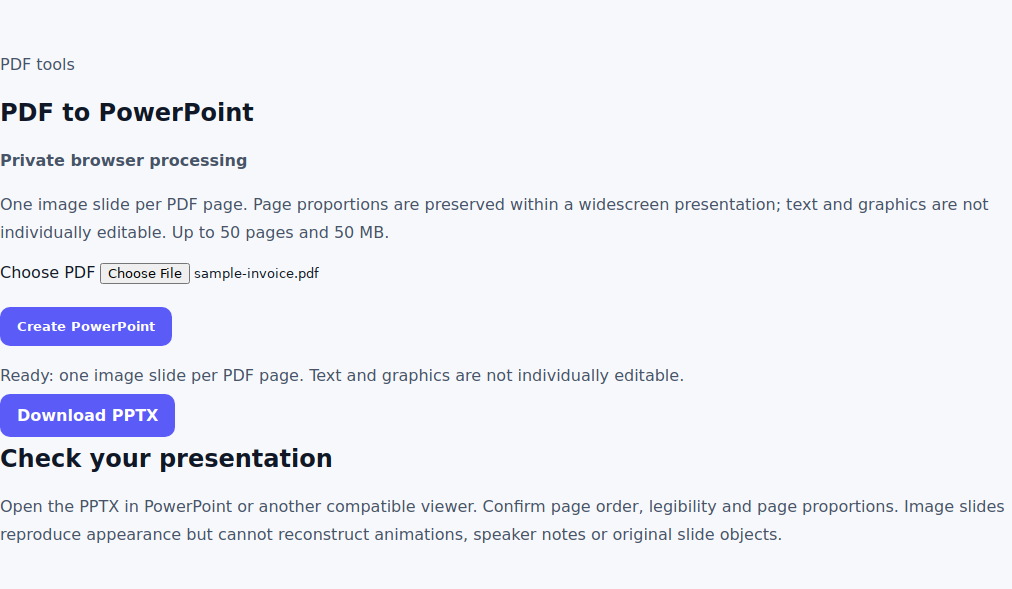
Open PDF to PowerPoint, choose your PDF and select Create PowerPoint. Download the PPTX and check it in your presentation editor. Each PDF page becomes one image slide; text and graphics are not separate editable objects.
Know what the presentation contains
The exporter renders each PDF page as an image and places it on a widescreen slide. It preserves that page’s proportions by fitting it within the slide. A portrait document can therefore have empty space at the sides; stretching it to fill the slide would distort the page.
This workflow is useful for presenting a finished report or handout. It does not reconstruct the original PowerPoint objects, animations, notes or editable charts. If you need to change the content extensively, work from the original presentation when available.
Convert the PDF step by step
- Open PDF to PowerPoint.
- Select a PDF up to 50 MB and 50 pages.
- Choose Create PowerPoint and wait for slide rendering.
- Choose Download PPTX and open the file in PowerPoint or a compatible viewer.
- Confirm that the number of slides matches the number of PDF pages and that the order is correct.
Prepare pages for a readable presentation
A dense A4 page can become hard to read when displayed as a whole slide. Zoom to normal presentation size and check the smallest labels. If the page is too dense, consider presenting only a relevant section with a separate source document or rebuilding the key points as native slides.
Fix sideways pages with Rotate PDF. Use Organize PDF Pages to arrange the source, or Delete PDF Pages to remove covers and blank pages before conversion. These changes determine the final slide sequence.
Check a two-page conversion
For a quick acceptance check, use a two-page document with a visible page number on each page. The presentation should contain two image slides in the same order. Compare a heading, image and small text block on both slides with the source PDF.
Click the page content in PowerPoint. It should select an image rather than an individual word or chart series. That is expected for this export. You can resize the page image or place new slide objects above it, but editing the picture does not reconstruct the original text.
Handle large files and scans
Image-heavy sources can produce a large PPTX. Split a long source with Split PDF and convert a smaller section first. A scan can be displayed without OCR because the slide is an image. If you also need searchable text or an editable document, use OCR PDF as a separate workflow.
Keep the PDF and compare the downloaded presentation before presenting. Fonts and text are part of the rendered image, but legibility still depends on the source quality and display size.
Frequently asked questions
Can I edit individual words in the PowerPoint?
No. Each page is one image slide. You can add new slide objects, but the original words are not separate text boxes.
Why are there blank margins on portrait pages?
The page is fitted proportionally within a widescreen slide. Empty space preserves the source proportions.
Does a scanned PDF need OCR for this export?
No. Image slides can display scanned pages without recognizing text. OCR is useful for search and text extraction instead.