
OCR PDF: Make Scanned PDFs Searchable
Private browser processing
English, Urdu, Arabic and Hindi recognition. The three new languages are in beta. Scanned pages become searchable while their appearance is kept as an image. Pages already containing text are retained. Check names, numbers and recognition errors.
Before using OCR
Use clear upright scans. Handwriting, low contrast and complex columns may be recognized poorly. Use a PDF up to 50 MB and 60 source pages. Select up to 20 pages to recognize in each run. Initial OCR assets require a network connection; document recognition happens on your device.
How to make a scanned PDF searchable with OCR
Optical character recognition (OCR) reads the letters in an image and creates text that a PDF reader can search or select. ToolVero OCR adds searchable text to image-only pages. Existing pages with selectable text are kept rather than reprocessed, so a page with an incomplete text layer may still need attention.
Copy text from a scanned PDF: test recognition, not appearance
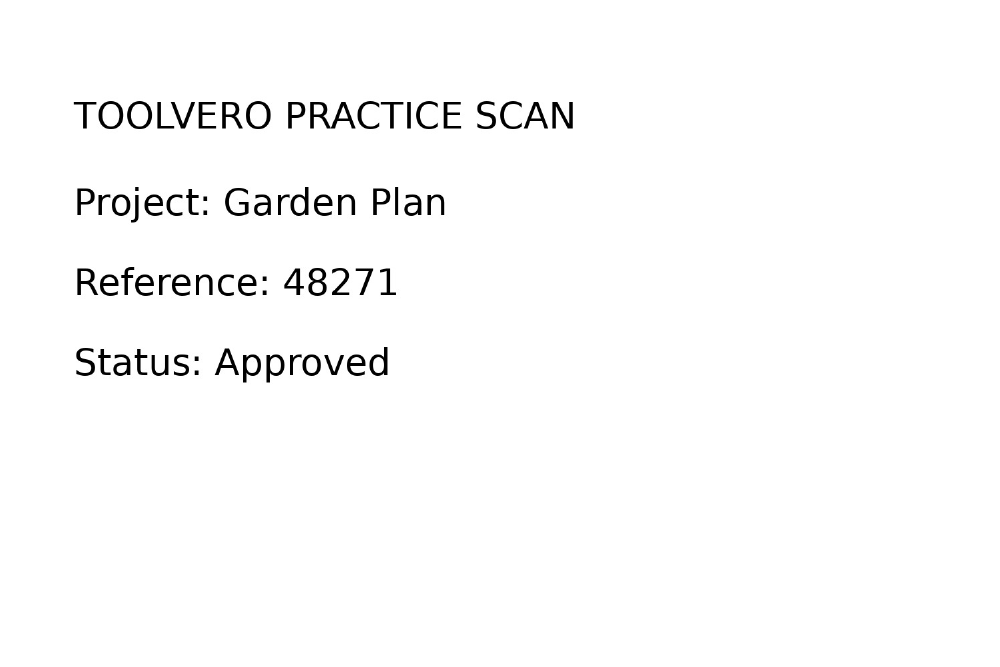
This practice page is an image. It looks readable to you, but its source PDF has no selectable text. OCR adds a text layer; the visible page may look nearly unchanged after recognition.
Three checks for the searchable copy
- Search for Garden. A hit shows that at least this word was recognized.
- Search for 48271. Compare each digit with the image; a plausible-looking number can still be wrong.
- Copy the whole page into a plain-text editor. Check line order, spaces and punctuation rather than only isolated words.
Why an invoice needs closer checking
OCR mistakes can change quantities or decimal points. For an invoice, verify the invoice number, currency, subtotal, tax and total against the scan. Do not use an OCR value as the sole record for a payment. If text is already selectable but wrong, this tool may retain that existing layer rather than replace it.
To make a scanned PDF searchable without uploading the document to a conversion server, run recognition here and keep the browser tab open. Recognition resources must load first; a phone may take longer or run out of memory on large scans.
Recognize and verify scanned text
- Choose a clear, upright PDF scan. Use a PDF up to 50 MB and 60 source pages. Enter a range such as
1-3,7to recognize only selected pages. Leave the field blank to check every page in a document of up to 20 pages. - Choose the printed language. Use English for the sample below. Enable “Also recognize English” for bilingual pages.
- Select Prepare searchable PDF and allow the OCR resources to load. Recognition runs on your device; keep the tab open while it works.
- Download the searchable copy. Open it in a PDF viewer and search for a distinctive word or number.
- Select and copy a short passage, then compare names, dates, numbers and punctuation with the scan.
See practical OCR examples in English, Urdu, Arabic and Hindi.
Practice: search a scanned reference
Compare recognition across four languages with ToolVero’s OCR benchmark and downloadable sample scans.
Download the sample scanned PDF. Run Prepare searchable PDF, download the result and search for “Garden” or “48271”. OCR is probabilistic, so compare the result against the visible page if a search fails.
Improve difficult scans
Use straight, high-contrast, readable scans. Skew, small print, handwritten notes, tables and multiple columns may cause errors or incorrect reading order. Select the language printed on the page. For bilingual scans, you can also include English. Check Urdu and Arabic reading order by copying a line into a plain text editor. New language models require internet access on first use. English can be prepared for offline use. OCR can make a page searchable but does not recreate its original editable layout.
Frequently asked questions
How can I make a scanned PDF searchable?
Use OCR to add recognized text, then open the downloaded PDF and test search and copy. Review the recognition against the original.
Can OCR convert a scanned PDF into editable Word?
OCR prepares a searchable PDF; use PDF to Word on that copy next. Complex layouts and tables can still need manual repair.
Why can’t I search a scanned PDF?
The pages may be images without a text layer, or the OCR may have misread the search term. Try a clearer scan and check recognized text.
Does this OCR support Urdu?
Yes. Select Urdu in the recognition language menu. Urdu support is in beta. Use a clear printed scan, then search for a word and check copied text before relying on the result.
Will OCR process every page?
Image-only pages are recognized. Pages with existing selectable text are retained, even if their existing text layer is incomplete.
Related tools and guides
Guides for this workflow
Step-by-step instructions and practical checks for these tools.
How to OCR a Scanned PDF and Make Its Text Searchable
Make scanned PDFs searchable with English, Urdu, Arabic or Hindi OCR. Review recognition errors before converting or sharing.
How to Install ToolVero and Prepare Tools for Offline Use
Install ToolVero when your browser offers it, prepare English OCR resources and test offline access before relying on cached tools.
Using OCR before translation? Cómo traducir un PDF al español.
How to scan a paper document before using OCR
Starting with paper? Capture the pages with Scan to PDF, then return here to make the PDF searchable.
Language guides: اردو OCR · OCR بالعربية · हिन्दी OCR