
How to Install ToolVero and Prepare Tools for Offline Use
Visit ToolVero online, use Install ToolVero when your browser offers installation, and prepare English OCR resources from the OCR tool. Test the exact task offline before relying on it; browser caches can be cleared or evicted.
Install when your browser offers it
ToolVero has a web app manifest and service worker for an installable core. In supporting browsers, the site shows Install ToolVero when the browser offers installation. Select it and follow the browser prompt. Availability depends on the browser and its installation rules.
If the site button does not appear, check your browser’s own menu for its installation or add-to-home-screen controls. A shortcut and an installed web app can behave differently across devices. Neither action makes every resource permanently available offline.
Prepare English OCR resources
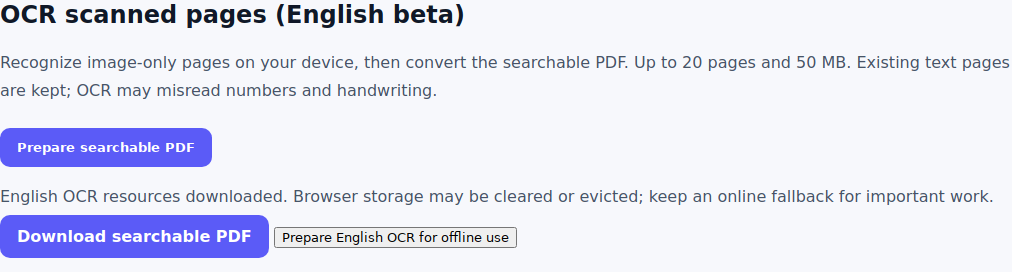
- Open OCR PDF with an internet connection.
- Choose Prepare English OCR for offline use.
- If the tool requests a reload after service-worker installation, reload once and select preparation again.
- Wait for the resources-downloaded message.
- Disconnect, reopen or reload the tool, and try a non-sensitive sample before relying on it.
The preparation button fetches the OCR scripts, WASM engine and English language data. Your browser needs enough available storage to retain them. The PDF itself is processed locally; downloading the engine is separate from sending a document to a server.
Understand what the offline core covers
The current core includes selected pages and conversion dependencies, including the new form, comparison, PowerPoint and raster archive tools. Other resources can be cached after use. Some PDFs need auxiliary fonts or character maps that have not yet been downloaded, so test the exact type of document you expect to use.
Visit a tool online before expecting offline access, and check its actual workflow. The offline page is a starting point, while the OCR guide explains the recognition limits.
Keep files and cache separate
A downloaded result is a file you save to your device. Cached app resources are browser-managed copies of pages and scripts. Clearing site data, using a private session, changing browsers or running short of storage can remove those resources without changing a file you already downloaded elsewhere.
Save every important output and keep the source. Do not treat an installed icon or an open browser tab as a backup of your documents. Read the ToolVero trust and processing information for more context.
Troubleshoot offline access
If the page will not load, reconnect and visit it again. If the page loads but a conversion fails, a required engine, font or language resource may be missing. Re-run OCR preparation where relevant and retry a small sample. Avoid clearing site data immediately before an offline session.
After a site update, allow an online visit to install the updated core and confirm the workflow again. Browser storage policies still control how long cached resources survive.
Frequently asked questions
Does installation guarantee every tool works offline?
No. Offline use depends on cached pages, libraries, fonts and language data, as well as browser storage. Test the workflow you need.
Will clearing browser data remove offline resources?
It can. Reconnect and prepare the required resources again after clearing site data.
Are my selected PDFs stored in the offline cache?
The site’s offline cache is intended for public app resources, not selected documents. Save important input and output files yourself.