
DOCX only. Older .doc files are not supported. Simple text, headings, tables and embedded images are the intended input. Columns, floating objects, custom fonts, headers, footers and exact Word pagination may not survive conversion. Use Word or LibreOffice export when layout fidelity is essential.
Continue your task
Combine the exported document with supporting attachments. Open Merge PDF.
Merge PDF
Combine the exported document with supporting attachments.
JPG to PDF
Create a separate PDF from photographed attachments, then merge it with the converted document.
How to Convert a Word Document to PDF
Read the worked steps, limitations and output checks.
Follow the full workflow: Prepare a PDF for Upload: Order, Size and Final Checks
Last updated: October 17, 2026 · Maintained by ToolVero
Try a reproducible DOCX example
Download the sample DOCX, convert it, and compare the result with the reference PDF. The reference was exported with LibreOffice; it shows the source content and is not a claimed output of this browser converter. Exact line wrapping and page counts may differ.
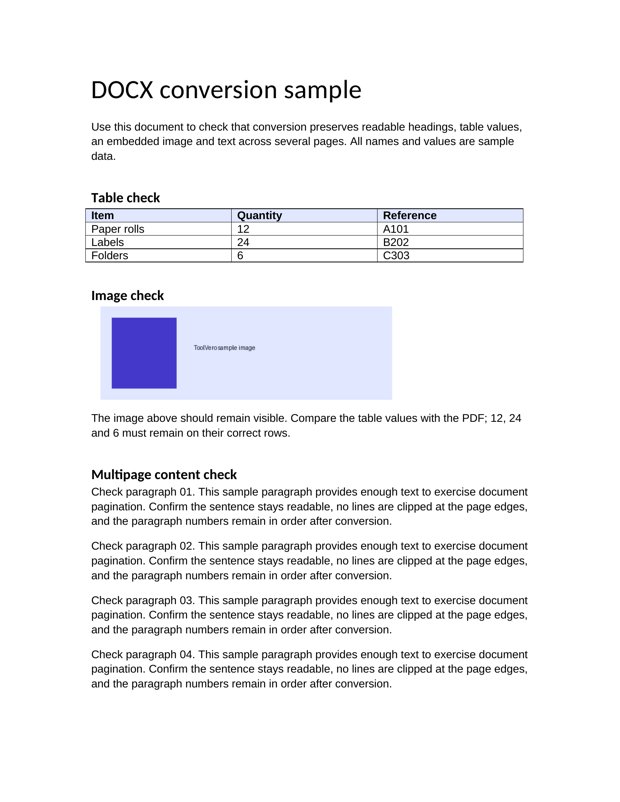
Check the downloaded output
- Confirm the title and Table check heading are readable.
- Check the quantities 12, 24 and 6 against references A101, B202 and C303.
- Confirm that the purple sample image is present.
- Find all numbered paragraphs 01 through 22 across the output pages.
- Find the FINAL CHECK sentence at the end; inspect every page edge for clipped content.
If any check fails, keep the original DOCX and use another export workflow. A downloaded PDF is not proof that conversion preserved the document.
About Word to PDF
Create a PDF from Word-compatible document content in the browser. Sharing documents in a format that is easier to view consistently across devices.
When is Word to PDF useful?
Sharing documents in a format that is easier to view consistently across devices.
- Use it when you need a quick result without installing desktop software.
- Review the output when the result will be submitted, published, printed or used for an important decision.
How to use Word to PDF
- Choose the supported document, convert it,
- open and review the PDF before sharing.
Practical tips for Word to PDF
Review headings, spacing, images and page breaks in the resulting PDF before sending or printing it.
- Keep the original input when the operation changes or converts it.
- Document conversion can differ from desktop Word rendering, especially with complex layouts, fonts and embedded objects.
Things to know before you start
Complex Word layouts, fonts and advanced document features may not reproduce exactly in every browser-based conversion workflow.
Privacy and file handling
ToolVero is built around browser-based utilities where the individual tool supports local processing. When a tool loads a public JavaScript library, that library is used to perform the operation in the page. Do not enter passwords, private keys or other highly sensitive information into any tool unless you understand the processing involved.
Frequently asked questions
Is Word to PDF free?
Yes. ToolVero provides this utility without requiring a subscription for routine use.
About this page
Written and maintained by Fahad Farid. See our editorial policy or report an error.