
How to Batch Process PDF Files and Download One ZIP
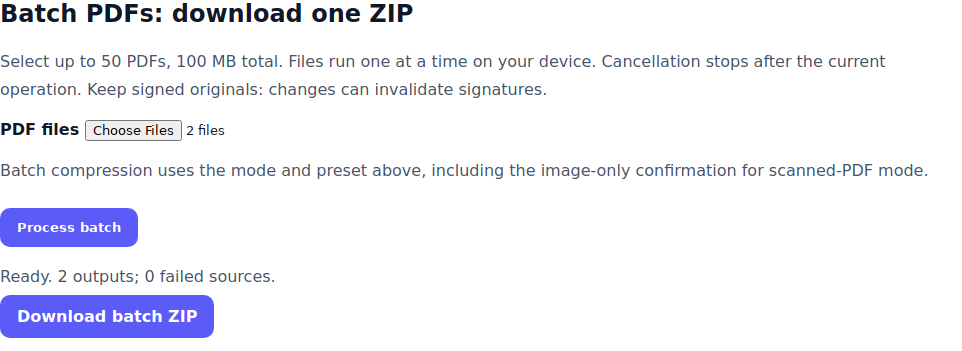
Open a supported PDF tool and find Batch PDFs: download one ZIP. Select up to 50 PDFs with no more than 100 MB total input, set the required options and choose Process batch. Extract the ZIP and check every output before sharing.
Choose the batch operation
| Task | Tool | ZIP contents |
|---|---|---|
| Reduce PDF size | Compress PDF | One PDF per successful source; unchanged if no reduction is found. |
| Export page images | PDF to JPG or PDF to PNG | A source folder containing numbered page images. |
| Extract selectable text | PDF to Text | One TXT per successful source. |
| Apply a text watermark | Watermark PDF | One watermarked PDF per successful source. |
| Add password protection | Protect PDF | One AES-protected PDF per successful source. |
Run your first batch
- Keep the original files and choose the tool for your task.
- Configure the options described below, then locate the batch panel.
- Select 1–50 PDFs. The combined source size must be 100 MB or less.
- Choose Process batch. Files run sequentially to reduce simultaneous work.
- Download the ZIP, extract it and open at least one result from each source.
- If an ERRORS.txt file is present, read it and retry the failed sources individually.
Set options before processing
Compression uses the mode and preset above the batch panel. Scan mode requires the image-only confirmation because it rebuilds pages and can remove text selection and interactive features. Structural mode may retain the original when rewriting does not make it smaller.
Watermark batches apply the selected text, size, color, rotation, opacity and position to every page. Image watermarks and per-source page choices use the individual workflow instead. For setup examples, read the watermark guide.
Protection applies the same entered passwords to every PDF. Choose a strong password and keep it safe before starting. The ZIP container itself is not password-protected by this workflow; the PDF files inside receive encryption. See PDF password protection for the individual controls.
Understand output names and failures
Names receive an index such as 01-report.pdf and 02-report.pdf so similarly named sources do not overwrite each other. Image exports use a source folder with files such as page-0001.jpg. Keep those folders together when checking the results.
If one source fails while others succeed, the ZIP includes ERRORS.txt describing the failed source. That file is a work list, not a completed output. If every source fails, no successful ZIP is offered. Empty files, inaccessible encrypted PDFs, malformed documents and scans without selectable text can cause failures.
Prepare scanned PDFs for text extraction
Batch text export reads an existing text layer. It does not run OCR on every file automatically. For each scan, use OCR PDF to prepare a searchable copy, then select those copies in the batch text panel.
Work within memory and output limits
The ZIP output is capped at 200 MB. Image and text exports support up to 150 pages per source; other operations have their own limits. Large PNGs can reach the output cap quickly. Use fewer sources or JPG when appropriate, and close other heavy tabs.
Cancel batch stops at the next cancellation check. An individual encryption operation or ZIP generation may need to finish first. Cancellation does not provide a partial ZIP. Keep signed originals because processing can invalidate cryptographic signatures.
Check a batch before sending it
- Compare the list of sources with the outputs and ERRORS.txt.
- Check page count, order and image readability.
- Open protected PDFs with the intended password.
- Confirm watermarks appear on every intended page.
- Review recognized numbers before using extracted text.
Frequently asked questions
Does batch processing merge all PDFs?
No. Batch processing creates separate outputs for separate sources. Use Merge PDF when you want one combined PDF.
Can I select different passwords for each file?
The batch protection workflow applies the same entered passwords to all sources. Process files individually when passwords need to differ.
Why is a PDF unchanged after batch compression?
If no smaller result is found, the compression engine retains the original bytes rather than presenting a larger result as a reduction.