
How to Compare Two PDF Files Side by Side
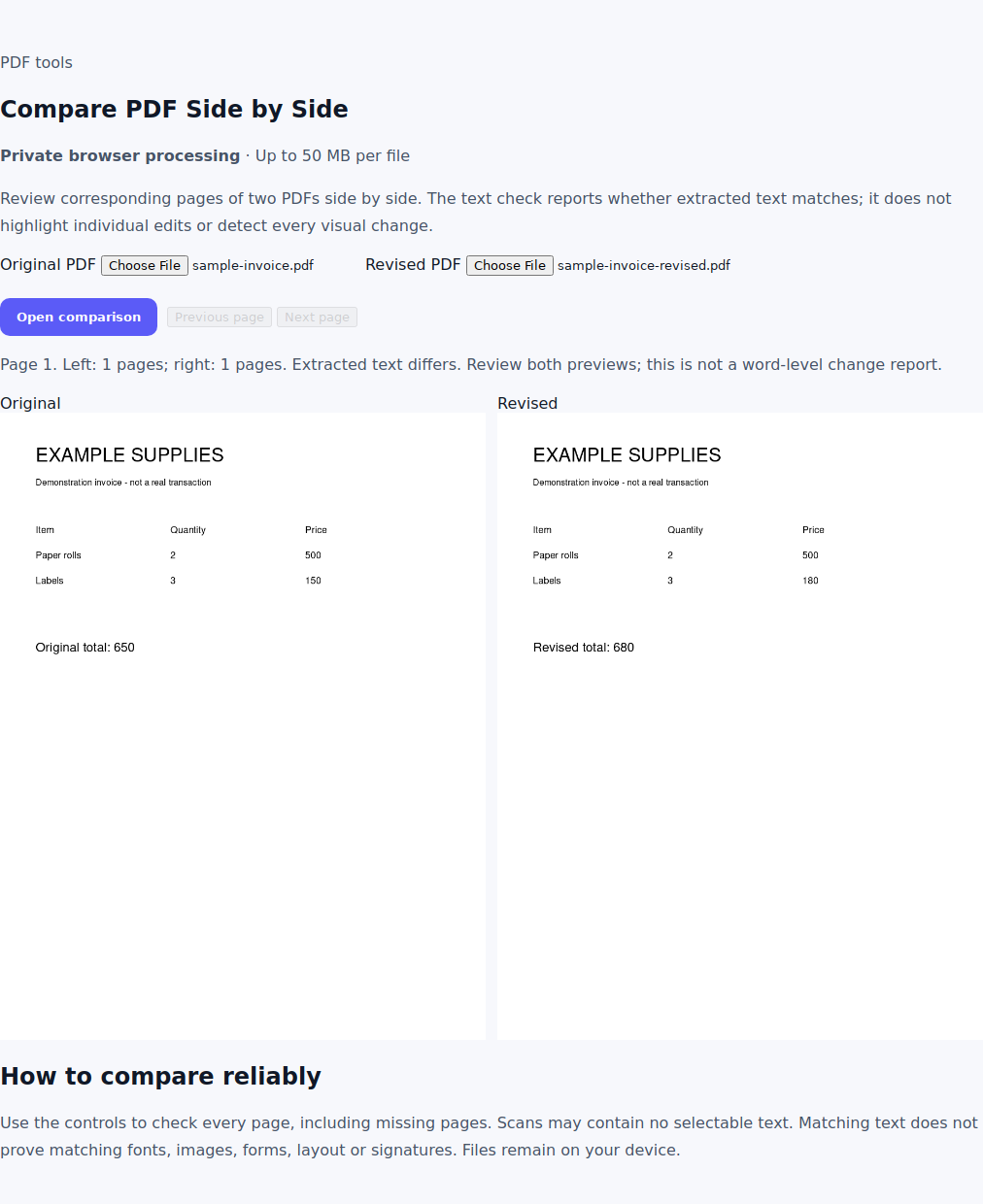
Choose an original and revised PDF in Compare PDF, then open the comparison. Review corresponding pages with Previous page and Next page. The text indicator reports a match or difference; it does not highlight individual edits.
Choose what you need to compare
PDF changes can affect words, page order, images, layout or interactive content. A text match answers only one part of that review. ToolVero shows two page previews and compares their extracted text. It is intended for a manual page review, not a complete change audit or a word-by-word redline.
Use the original file on the left and the revised file on the right. Consistent placement makes it easier to notice missing content and reduces confusion when switching between pages.
Open and navigate the comparison
- Open Compare PDF.
- Select the original and revised files. Each must be smaller than 50 MB.
- Choose Open comparison.
- Read the page counts and text indicator, then inspect both previews.
- Use Next page and Previous page until you have reviewed the entire pair.
Interpret the text indicator correctly
| Message | Meaning | Next check |
|---|---|---|
| Extracted text matches | The extracted strings match after whitespace normalization. | Compare images, font appearance, layout and form values visually. |
| Extracted text differs | The extracted strings are different. | Review the page; the tool does not identify the exact changed words. |
| No selectable text | Neither page provides useful extracted text for this check. | Inspect scans visually or prepare separate OCR copies. |
| No corresponding page | One file has no page at that position. | Check whether pages were inserted, removed or shifted. |
Account for inserted and reordered pages
The tool compares matching page positions, not semantic sections. If a cover is added to the revised document, page 2 on one side may correspond to page 3 on the other. That can produce many text differences even when the underlying section is unchanged.
Keep the originals and make temporary working copies with Extract PDF Pages or Organize PDF Pages when you need to align sections. Use visible headings and printed page labels to confirm which pages belong together.
Review scans, forms and important values
Scanned pages may have no text layer, or an existing OCR layer may contain errors. Use OCR PDF on a working copy when search or extraction will help, but compare the page images as well. A text difference in an OCR copy can come from recognition differences.
For a completed form, compare visible field values with the source using the form-filling review checklist. The text indicator is not a dedicated form-field comparison. Matching extracted strings do not prove identical signatures, attachments or document permissions.
Use a simple acceptance check
Compare a two-page original with a revision that changes one visible heading and removes its second page. The first page should be reviewed for the changed heading; navigation should also expose the unmatched page. Then compare two identical text-based files and confirm that the indicator reports matching extracted text.
For an important revision, record the changes you checked outside the tool. This comparison does not generate an exhaustive audit report or certify that two PDFs are equivalent.
Frequently asked questions
Does the tool highlight changed words?
No. It reports whether the page’s extracted text matches and provides two previews for visual review.
Can text match while the pages look different?
Yes. Images, colors, fonts, layout and other visible properties can differ even when extracted text matches.
Does the tool automatically align moved pages?
No. It compares corresponding page positions. Prepare aligned working copies when inserted or reordered pages shift the content.