
How to Fill PDF Forms and Save a Completed Copy
Open Fill PDF Forms and choose a standard AcroForm PDF. Enter the values, optionally choose Flatten completed fields when saving, and save a new PDF. Open the download in a PDF reader to verify every field.
Check that the PDF has supported form fields
A document that looks like a form may contain ordinary lines and printed labels rather than interactive fields. ToolVero fills existing AcroForm fields: text fields, checkboxes, dropdowns, option lists and radio groups. Scanned forms and XFA forms are not supported by this tool.
If no supported fields are found, opening the file in OCR will not create form fields. OCR adds recognized text for search; it does not construct interactive controls. Use an appropriate form editor or ask for an accessible, fillable source.
Enter and save the values
- Keep the original and open Fill PDF Forms.
- Select a PDF smaller than 50 MB. If it requires a password, use an authorized unlocked copy.
- Review the listed field names and enter the requested values.
- Choose checkboxes, radio options or dropdown values where offered. Read-only fields cannot be changed.
- Leave flattening unchecked when you want supported fields to remain editable, or select it when you want to remove form editability.
- Choose Save completed PDF, then download and inspect the copy.
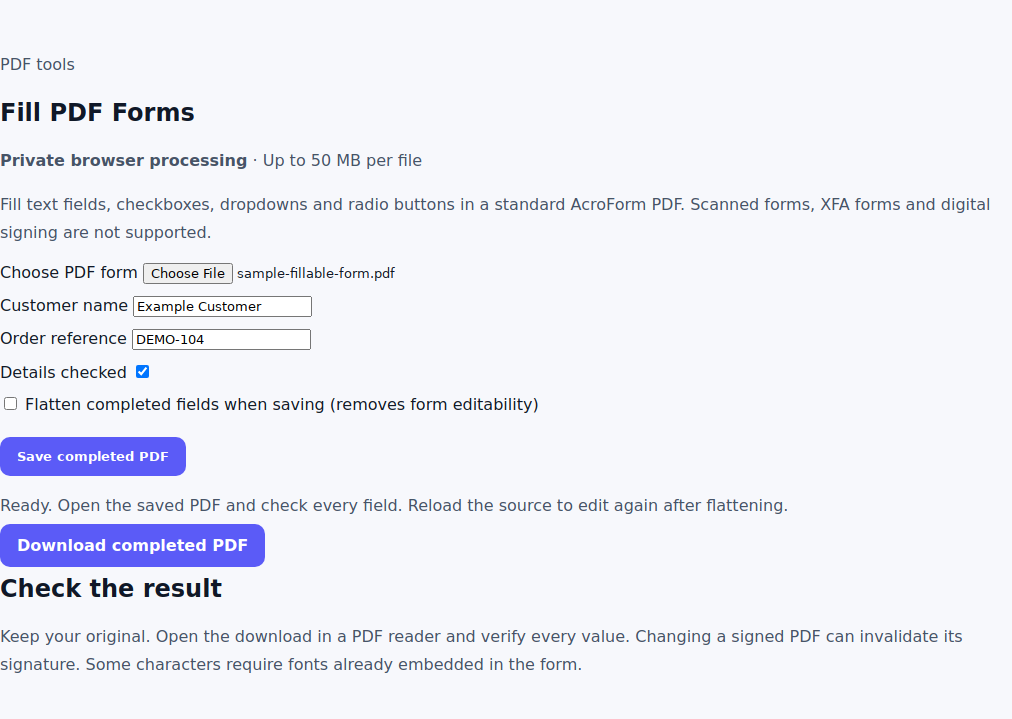
Choose editable or flattened output
An editable copy keeps form fields available for further changes. Flattening turns the supported field appearances into page content and removes the form fields. It is useful for a completed copy, but it is not encryption and does not prevent every kind of PDF editing.
After a flattened save, reload the source before making another set of changes. For an existing filled PDF, the separate Flatten PDF tool may be a shorter workflow. Keep editable originals when you expect corrections.
Check the saved form
Open the result in a PDF reader rather than relying only on the list of values shown on the website. Verify names, dates, amounts, ticked choices and long text. Check that text fits inside the visible field, especially when the field label differs from the printed question.
For a simple acceptance check, fill a name field and tick one checkbox. Save an editable copy and reopen it to verify both values. Then create a flattened copy from the source and confirm that the field is no longer interactive. Keep both copies clearly named.
Fix unsupported fields and characters
Unsupported field types are labelled in the interface. A save error can also occur when the form lacks fonts capable of displaying your characters. Shortening a value does not add a missing font. Use a PDF editor with the required font support or ask the form issuer for a compatible version.
Changing a signed PDF can invalidate its signature. This tool does not create a cryptographic signature or perform an e-sign approval workflow. If you only need a visual signature, read the PDF signing guide and distinguish that appearance from a verified digital signature.
Review or protect the final copy
Use Compare PDF to review the source and completed pages side by side. If the recipient needs an encrypted copy, use Protect PDF after checking the form and share the password through an appropriate separate channel.
Frequently asked questions
Can I fill a scanned form?
This tool requires existing AcroForm fields. A scanned page is an image, and OCR does not automatically add interactive form fields.
Does flattening lock the PDF?
Flattening removes form editability. It does not encrypt the document or prevent all later editing.
Why are some fields disabled?
Fields marked read-only by the form are not editable in this tool.