
Create and Validate a Raster PDF/A-2b Archive Copy
Confirm that your archive accepts an image-only PDF/A-2b copy, select your PDF in the archive tool and accept the raster-output trade-off. Download the result and validate that exact file before submission. Keep the original document.
Confirm the receiving archive’s requirements
PDF/A is a family of archival PDF profiles. A receiving organization can require a particular profile, searchable text or other properties. Ask which flavor it accepts before choosing an export. ToolVero currently targets PDF/A-2b through raster output; it does not offer a PDF/A-2u or accessible-PDF workflow.
A filename ending in archive.pdf or a PDF/A metadata declaration is not a validation result. The final file must satisfy the chosen profile. The veraPDF validation documentation explains its checks against PDF/A requirements.
Understand the image-only trade-off
| Property | Raster archive result |
|---|---|
| Visible pages | Rendered as JPEG images at up to 144 DPI, bounded to five million pixels per page. |
| Selectable text and vectors | Removed from the output. |
| Forms, links and attachments | Not preserved as interactive or attached objects. |
| Digital signatures | The new file does not retain valid source signatures. |
| Color and identification | Includes an sRGB output profile and archival XMP metadata. |
This approach creates a simplified copy for archives that accept those properties. It is unsuitable when selectable text, vector detail, accessibility structure or existing signatures must survive. Keep the original alongside any archive copy.
Create the archival copy
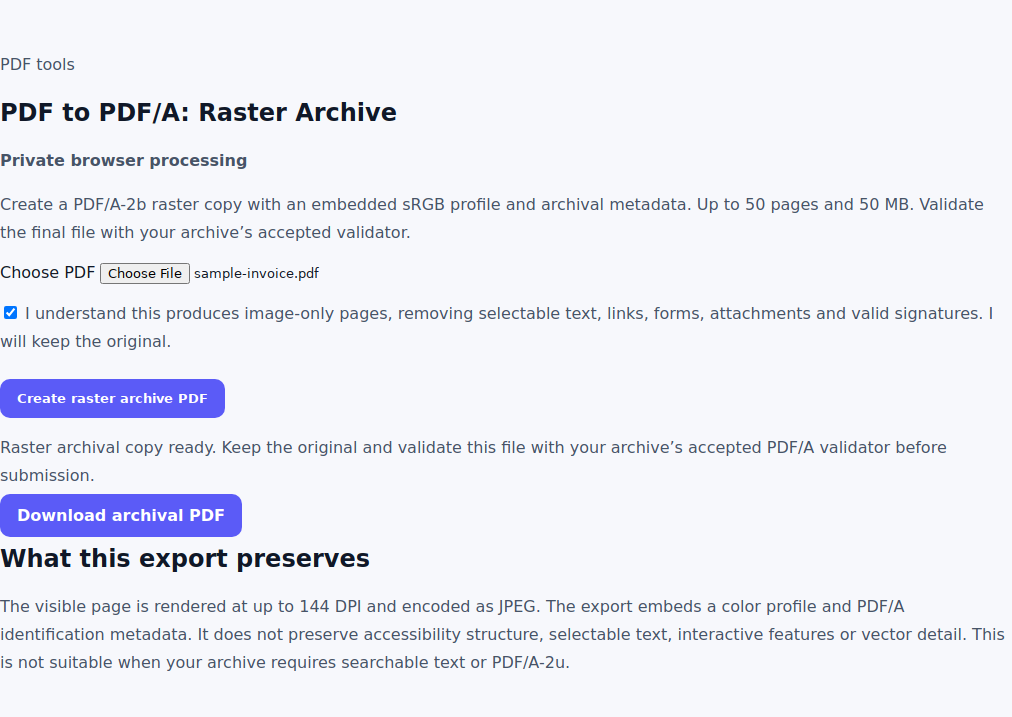
- Open PDF to PDF/A and select a PDF under 50 MB with no more than 50 pages.
- Read and select the image-only confirmation.
- Choose Create raster archive PDF.
- Download the archival PDF. The encoded page images are limited to 100 MB.
- Inspect every page and validate the downloaded file against PDF/A-2b and the archive’s other requirements.
Validate the exact downloaded file
Use a current validator accepted by the recipient. In veraPDF, select the PDF/A-2b profile and inspect the report. If validation fails, read the failing rules rather than changing only the extension or metadata. The veraPDF desktop guide describes opening a document and reviewing conformance results.
The shipped exporter’s two-page test fixture passed veraPDF 1.30.3’s PDF/A-2b check. That is evidence for the tested output, not a certificate for every future document. Save the report for the file you actually submit if the archive requests it.
Review visual quality separately
A conformance report and a readability review answer different questions. Zoom in on small print, diagrams, stamps and light handwriting. Large pages may be rendered below 144 DPI to stay within the pixel bound. If detail is insufficient, keep the source and choose a workflow that meets the archive’s quality requirements.
If you need searchable text for another task, use OCR PDF separately. This raster archive export removes the text layer, so running OCR first will not make its output searchable. For editable content instead, consider PDF to Word.
Frequently asked questions
Does PDF/A mean the document is searchable?
Not by itself. This exporter creates image-only PDF/A-2b output and removes selectable text. Confirm search requirements with the receiving archive.
Can I keep a valid digital signature?
This export rebuilds a new document and does not retain valid source signatures. Preserve the signed original.
Is a successful fixture test enough for my document?
No. Validate the actual downloaded file against the profile and requirements your archive accepts.